 BYD Tech
The short answer
To publish an app on Google Play, create a Play Console developer account, upload a signed release, complete the store listing and the data safety and content rating forms, and roll out to production. New personal developer accounts must first run a closed test: at least 12 testers opted in continuously for 14 days before you can apply for production access. The rule is written for personal accounts, while organization accounts verify the business instead, so the account type matters.
Key points
- Decide early: a personal or an organization developer account.
- New personal accounts need a closed test with 12 testers for 14 days first.
- The data safety form and privacy policy must match what the app really does.
- Upload an Android App Bundle, signed through Play App Signing.
- Roll out in stages, and watch crashes before going to everyone.
Step 1: The developer account
You need a Google Play Console account. Choose its type carefully, because it decides what Google asks of you. An organization account is in the company’s name and needs business verification, including a D-U-N-S number. A personal account is in an individual’s name.
Put the account in the company’s name if the app belongs to a company. Moving an app between accounts later is possible but adds work.
Step 2: The closed test, for new personal accounts
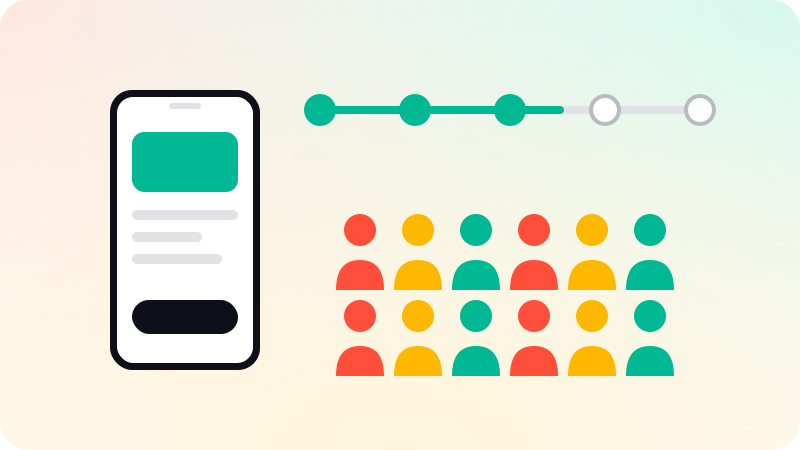
Google’s Play Console help states that personal developer accounts created after November 13, 2023 must run a closed test before applying for production access. At least 12 testers must be opted in when you apply, and they must have been opted in continuously for the preceding 14 days.
- Recruit real testers early. Friends who install once and forget do not help.
- Keep them opted in for the whole period, and ask them to actually use the app.
- Use the feedback. Google asks about the test when you apply.
- Plan for this period in your launch date.
Step 3: The build
- Upload an Android App Bundle, the format Google Play requires for new apps.
- Enroll in Play App Signing so Google manages the signing key.
- Target the API level Google currently requires for new apps and updates.
- Use internal testing for your own team before the closed test.
Step 4: The listing and the forms
- Store listing: name, short and full description, icon, screenshots and a feature graphic.
- Data safety form: what data the app collects and shares, and why. It must match the app and your privacy policy.
- A privacy policy at a public address.
- Content rating questionnaire.
- Target audience and, if relevant, ads declaration.
- Account deletion details, if the app lets people create accounts.
Most rejections come from a mismatch between what the forms say and what the app does. Google’s Developer Policy Center is the reference.
Step 5: Release
- Apply for production access, once the closed test requirement is met.
- Submit the release for review.
- Use a staged rollout to a small share of users first.
- Watch crash and error reports in Play Console, then widen the rollout.
Apple’s process is different, with its own review rules. See App Store rejection reasons. We publish under your own developer accounts in mobile app development, with test builds on your phone along the way.
Sources
Checked when this guide was written.