 BYD Tech
The short answer
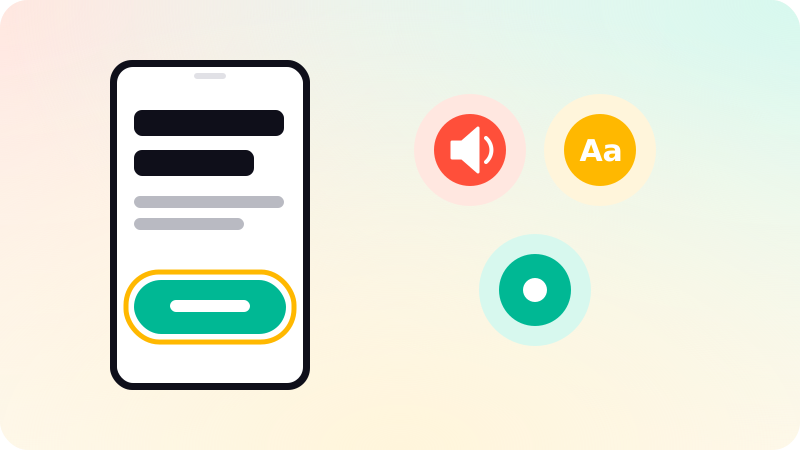
An accessible mobile app works for people who use screen readers such as VoiceOver and TalkBack, larger text sizes, switch control, voice control or reduced motion. The essentials are a clear label on every control, touch targets of at least 44 by 44 points on iOS and 48 by 48 dp on Android, text contrast of at least 4.5 to 1, layouts that survive large text, and information never conveyed by color alone. Test with the screen reader on a real device.
Key points
- Every button and icon needs a label a screen reader can read.
- Touch targets: at least 44 pt on iOS and 48 dp on Android.
- Text contrast of at least 4.5 to 1 for normal text.
- Support the system text size without breaking layouts.
- Test with VoiceOver and TalkBack yourself.
Why it matters
Many people use their phone with accessibility settings: larger text, screen readers, reduced motion. An app that ignores them locks those people out, and in many places accessibility is also a legal requirement. The W3C applies the same WCAG principles to mobile apps as to websites. See What is WCAG?.
The checklist
| Area | What to do |
|---|---|
| Labels | Give every interactive element a short label describing its purpose: "Share", not "Share button" |
| Decorative images | Hide them from the screen reader |
| Touch targets | At least 44 by 44 points on iOS, 48 by 48 dp on Android |
| Contrast | At least 4.5 to 1 for normal text, 3 to 1 for large text |
| Text size | Use the system text styles so Dynamic Type and Android font scaling work |
| Color | Never use color alone to show state or errors |
| Focus order | The screen reader moves through the screen in a sensible order |
| Motion | Respect the reduce motion setting |
| Forms | Labels stay visible, and errors say what to fix |
In React Native
- Set accessibilityLabel on icon buttons and images that carry meaning.
- Set accessibilityRole so screen readers announce buttons, links and headers correctly.
- Use accessibilityState for selected, checked and disabled states.
- Use hitSlop or padding to enlarge small touch targets.
- Do not fix text heights; let text grow with the user’s settings.
Testing
- Turn on VoiceOver on an iPhone and TalkBack on an Android phone, and complete your main flows by ear.
- Set the largest text size and check every screen.
- Run Xcode’s Accessibility Inspector and Android’s Accessibility Scanner.
- Add accessibility checks to your design reviews so issues are caught before code.
Accessible design starts in the design files. See What is a design system?. We build apps in React Native in mobile app development.
Sources
Checked when this guide was written.